What Does a Streaming Device Do? Fire TV Stick, Apple TV and More Explained
If you’ve heard the grandchildren mention a Fire Stick or an Apple TV and nodded along without quite knowing what they meant, you’re in good company. These little gadgets are everywhere now. They turn up as gifts, they get talked about like everyone already owns one, and nobody stops to explain what they actually do.
Here’s the plain version. A streaming device is a small box or stick that plugs into your telly and adds apps to it. Apps like Netflix, ABC iview, YouTube and 7plus. It turns an ordinary television into one that can play programmes over the internet, whenever you feel like watching them, rather than waiting for something to come on at a set time.
That’s the whole job. This guide explains what these devices do, whether you even need one, and which is the simplest for someone who just wants to watch a bit of telly without a fuss.
Quick answer
A streaming device plugs into the HDMI socket on your TV and connects to your home wifi. It adds apps so you can watch Netflix, ABC iview, YouTube and more on the big screen. You browse with a small remote and pick what to watch.
The three you’ll see in Australian shops are the Amazon Fire TV Stick, the Apple TV, and the Google TV Streamer. The Fire TV Stick is the cheapest and simplest. The Apple TV suits people who already have an iPhone or iPad. If your television is only a few years old, it may already do all this on its own, so it’s worth checking before you buy anything.
What a streaming device actually does
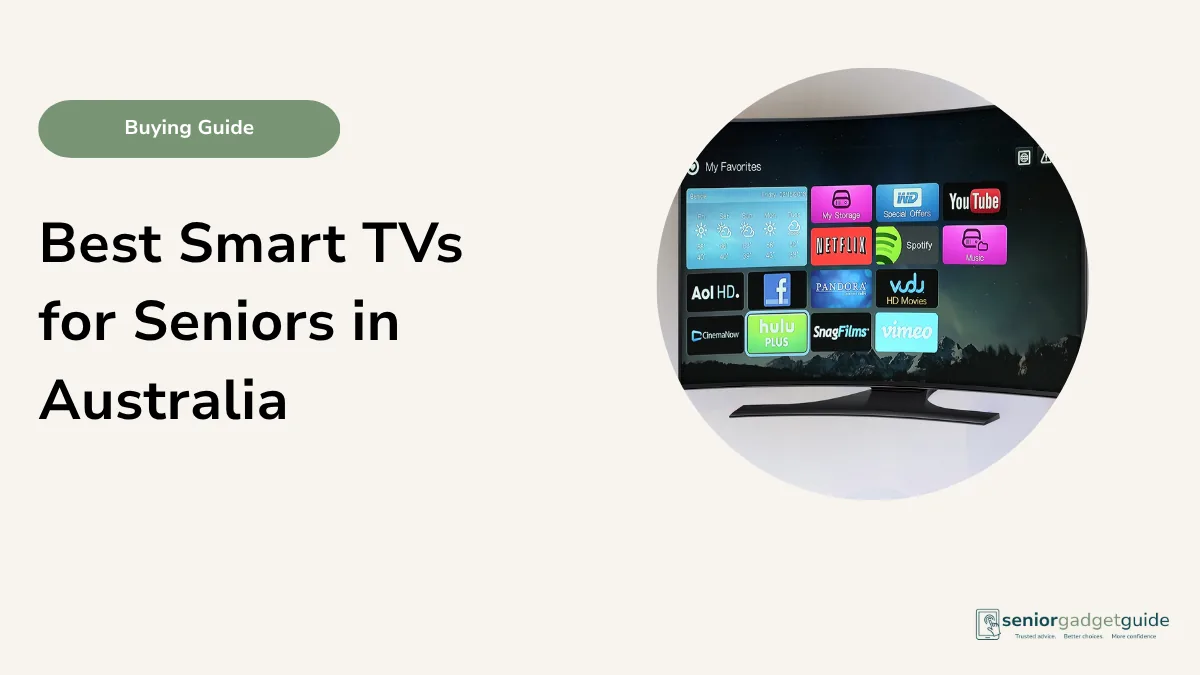
Think of the apps on a smartphone. Each little square opens a different service. A streaming device brings that same idea to your television. Instead of the handful of channels that come down the antenna, you get a screen full of apps, and each one is a doorway to hours of programmes.
Some of those apps are free. ABC iview, SBS On Demand, 7plus, 9Now and 10 play let you watch Australian shows and catch up on things you missed, at no cost, with a few ads along the way. Our guide to free catch-up TV apps runs through them. Others charge a monthly fee. Netflix, Disney+ and Stan are the common paid ones. You only pay for the ones you choose to sign up for, and you can cancel any time.
You control the whole thing with a small remote that comes in the box. It usually has just a handful of buttons, which is a pleasant change from the forty tiny keys on a normal TV remote. Point, scroll, press to choose. Many of them have a microphone button too, so you can hold it down and say “play the news” rather than typing.
Do you even need one?
This is the honest question, and for a lot of people the answer is no. Most televisions sold in the last few years are already “smart”, which means they have these apps built in. If your TV shows Netflix or ABC iview on its home screen when you turn it on, you don’t need a separate device at all. You already have everything a streaming stick would give you.
So when is a streaming device worth buying? Really only in three cases. Your TV is older and has no apps at all. Your smart TV has become slow and clunky, and a fresh stick makes it quick again. Or the app you want simply isn’t on your particular telly. If none of those is true, save your money. If your set already has the apps, our step-by-step guide to watching Netflix or YouTube on a smart TV shows you where to find them.
One more thing worth saying plainly. None of this replaces your normal channels. If you only ever watch ABC, Seven, Nine and Ten, those come free through the antenna, and you don’t need a streaming device for them. A stick sits alongside your regular telly, on a different input, ready for when you want it.
The main options in Australia
There are only really three names to know here, plus a couple of things you may already own. Here’s the quick way to match one to how you watch telly. If you want a closer look at picking between them, our buying guide to the best streaming devices for seniors goes further.
| If you… | Better fit |
|---|---|
| Just want the cheapest, simplest way in | Amazon Fire TV Stick |
| Already use an iPhone or iPad | Apple TV 4K |
| Watch a lot of YouTube, or use an Android phone | Google TV Streamer |
| Have a TV that’s only a few years old | Check it first, you may already have the apps |
| Only want the free local channels | The antenna, no streaming device needed |
Amazon Fire TV Stick
The most popular one, and usually the cheapest. It’s a small stick, about the size of a chunky USB memory stick, that hides behind your TV. It comes in a few versions in Australian shops. The Fire TV Stick HD is the entry model, around $79, and it’s plenty for most people. The 4K versions cost a bit more and give a sharper picture if you have a newer, larger television.
The menus lean towards Amazon’s own shows, which some people find a little busy. But the remote is simple, the setup is friendly, and it carries all the apps an Australian household actually uses. You’ll find it at JB Hi-Fi, Officeworks, The Good Guys and Harvey Norman. Plain verdict: the safe first choice for someone who isn’t fussed about gadgets.
Apple TV 4K
This is a small square box rather than a stick, and it’s the dearest of the three by a fair margin. What you get for the extra money is a clean, calm menu with no adverts pushed at you, and it works beautifully alongside an iPhone or iPad. Photos from your phone can appear on the big screen, and it all feels like part of the same family.
If nobody in the house has Apple gadgets, the extra cost is hard to justify. But if you’re already comfortable with an iPhone, the familiar feel can make it the easiest of the lot. Sold at Apple, JB Hi-Fi and Officeworks. Plain verdict: worth it for committed Apple users, skip it otherwise.
Google TV Streamer
The middle ground. This is Google’s device (it replaced the older Chromecast in 2024) and it sits between the Fire TV Stick and the Apple TV on price, around $159. It’s a good fit if you watch a lot of YouTube or already use an Android phone, since it ties in neatly with both.
The menu gathers suggestions from all your apps into one place, which some people love and others find is a bit much. It carries all the usual Australian apps. Stocked at JB Hi-Fi and Officeworks. Plain verdict: a sensible pick for YouTube watchers and Android phone owners.
What about Roku?
You may see Roku mentioned in overseas reviews and lists. It’s a popular brand in America and Britain, and its menu is one of the simplest around. The catch is that it isn’t really sold in Australian shops, and some of its features don’t line up neatly with our local apps. For an Australian household it’s easier to stick with one of the three above, which you can buy down the road and get help with locally.
What you need to get started
Not much, and you probably already have most of it. Two things really matter.
The first is a spare HDMI socket on your television. That’s the flat, wide socket on the back of the set, and nearly every TV made in the last fifteen years has at least one. The streaming stick plugs straight into it. The second is home internet with wifi, because the programmes come down your broadband line rather than the antenna. If you can already use the internet on a phone or tablet in the lounge, your wifi will handle a streaming device. If wifi itself is still a bit of a mystery, our plain guide to what wifi is clears it up.
Everyday watching uses very little internet. A stick only starts to lean on a fast connection if you’re playing the sharpest 4K picture on a big new TV. For ordinary telly on an ordinary set, almost any home broadband copes fine. If some of the words in this guide are new to you, our glossary of common tech words explains them in plain English.
Before you finish
Download the free Family Tech Safety Checklist to help check phone safety, passwords, scam messages, emergency contacts and medical alarm details.
Setting one up
Setting up a streaming stick is designed to be simple, and it walks you through most of it on screen. The rough shape of it is this.
1. Plug it in
Push the stick into a spare HDMI socket on the back of the TV, and plug its little power cable into the wall or a USB socket on the telly. That’s the hardest part done.
2. Find the right input
Press the Source or Input button on your TV remote until you see the streaming device’s welcome screen. It’s the same button you’d use to switch to a DVD player. You only do this once to set up, then it remembers.
3. Join your wifi
The device will show a list of nearby wifi networks. Pick yours and type in the password once. This is the fiddliest step, so have your wifi password handy. It’s often printed on a sticker on the underside of your internet router.
4. Sign in to the apps you want
Open ABC iview, Netflix or whatever you use and sign in with your account. You do this once per app and it stays signed in. If you don’t have accounts yet, the free ones like ABC iview take a couple of minutes to set up. Then you’re watching.
If the fiddly steps put you off, this is a lovely thing to ask a visiting son, daughter or grandchild to do in ten minutes. Once it’s set up, using it day to day is just point and press.
FAQ: Streaming devices
Do I need a streaming device if I already have a smart TV?
Usually no. If your TV already shows apps like Netflix or ABC iview when you turn it on, it does the same job. A streaming stick is mainly for older TVs, or smart TVs that have become slow.
Does it cost money every month?
The device itself is a one-off purchase. After that, some apps are free, like ABC iview and SBS On Demand. Others charge a monthly fee, like Netflix and Stan. You only pay for the ones you choose to sign up for.
Will it work with my internet?
Yes, as long as you have home wifi. If you can already browse the internet on a phone or tablet in the lounge, a streaming device will work. Everyday watching uses very little.
Which one is easiest for someone who isn’t into gadgets?
The Amazon Fire TV Stick is the usual answer. It’s the cheapest, the remote is simple, and it’s sold everywhere in Australia so help is easy to find.
Can I still watch normal TV channels?
Yes. Your regular free-to-air channels still come through the antenna as before. A streaming device sits on a separate input, and you switch to it only when you want the apps.