How to Use a Password Manager: A Simple Guide
Remembering a different password for every account is impossible, so most of us reuse a few, or write them on a list by the computer. A password manager solves this. It is a secure digital notebook that remembers all your passwords for you, so you only ever need to recall one.
It sounds technical, but in daily use it is genuinely simpler than what you do now. This guide explains what a password manager is, why it is safe, and how to start using one without any fuss. You will find more advice like this in our main guide to staying safe online.
Quick answer
A password manager stores all your passwords in one secure place, locked behind a single master password that only you know. It fills in your logins automatically and can create strong passwords for you. Your phone or web browser likely has one built in already, which is the easiest place to start.
What a password manager actually does
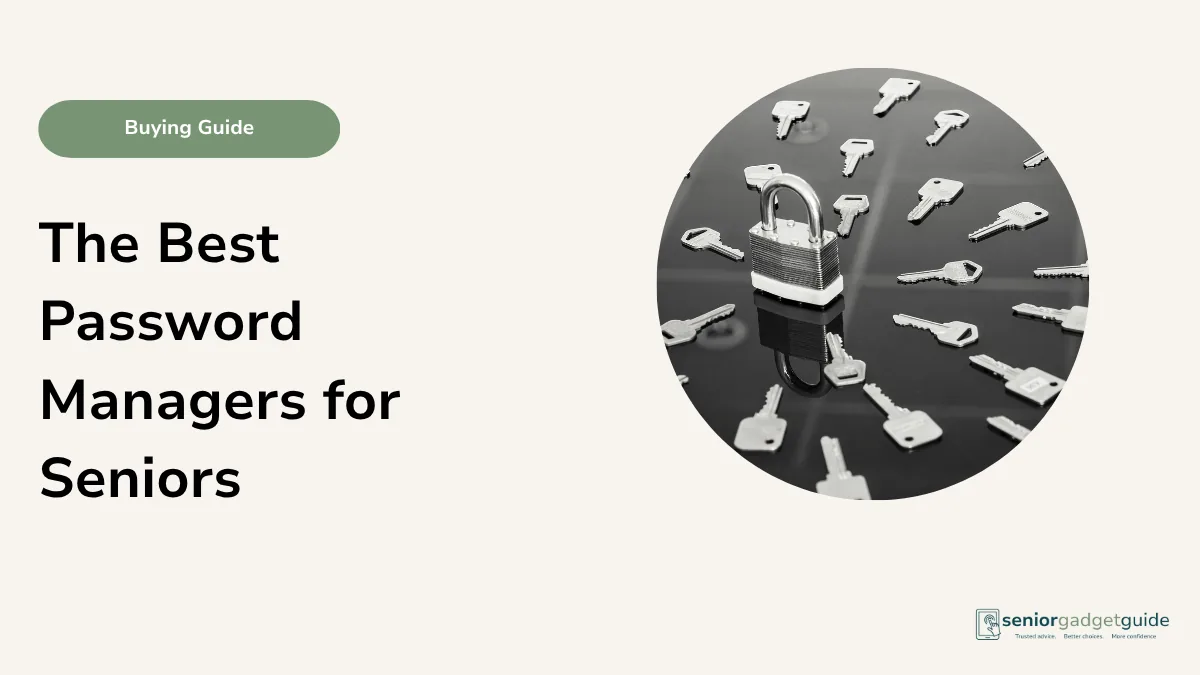
Think of it as a locked drawer that holds all your keys. You open the drawer with one master password, and inside are all your other passwords, kept safe. When you visit a website or open an app, the manager offers to fill in the right login for you. You do not type the password, and you do not need to remember it.
It can also suggest a long, strong password whenever you make a new account, and remember it instantly. That means every account gets its own unique password, which is one of the best things you can do for your safety, without any extra effort from you.
Is it safe to keep them all in one place?
It is far safer than the alternatives. The passwords are scrambled, or encrypted, so that even the company providing the manager cannot read them. Your one master password is the key. This is much stronger than reusing the same password everywhere, or keeping a written list that anyone could find. The one thing to get right is choosing a strong master password and not forgetting it.
The easiest way to start
You may already have one. iPhones and iPads include a built-in password manager (now called Passwords), and so do the Chrome, Safari and Edge web browsers on a computer. These are free and a fine place to begin.
- Next time you log in to a site, let your phone or browser offer to save the password. Say yes.
- The next time you visit, it will offer to fill it in for you. Tap to accept.
- When making a new account, accept the strong password it suggests.
- Protect your phone or computer with a PIN, fingerprint or face unlock, as this guards the manager.
If you would like one that works neatly across all your devices, there are dedicated apps as well. Whichever you choose, the habit is the same. A password manager pairs perfectly with two-factor authentication, and our guide on creating a strong password will help with the one master password you do need to remember.
Before you finish
Download the free Family Tech Safety Checklist to help check phone safety, passwords, scam messages, emergency contacts and medical alarm details.
FAQ: Using a password manager
What happens if I forget my master password?
This is the one to keep safe. Write it down and store it somewhere secure at home, away from the computer. Some managers offer recovery options, but the master password is your key.
Do I have to pay for one?
No. The ones built into your iPhone, iPad or web browser are free and work well. Paid apps add features but are not essential to get started.
Is it really safer than my notebook?
Yes. A manager gives every account a strong, unique password and keeps them encrypted. A written list can be lost, seen, or use the same password everywhere.
Will it work on my phone and computer?
The built-in ones work across Apple devices or within a browser. Dedicated apps sync across everything, including phones, tablets and computers.
What if I get stuck setting it up?
It is a nice task to do with a family member. Once a few logins are saved, it quickly becomes second nature.