How to Make an iPad Easier to Use for Seniors
An iPad is one of the most useful things an older person can have: video calls, family photos, email, news, games, reading and keeping in touch, all in one place. The trouble is that it rarely arrives ready for that. Out of the box the text is small, the screen is busy, and the notifications never stop. A handful of changes fixes nearly all of it.
Here is how to set an iPad up so it is clear, calm and comfortable to use, step by step.
Quick checklist
- Make the text larger
- Turn on bold text
- Increase brightness
- Remove unused apps from the Home Screen
- Put FaceTime, Messages, Photos, and Mail on the first screen
- Increase the volume
- Turn off unnecessary notifications
- Set up family contacts and test a FaceTime call
1. Make the text larger
Small text is the single most common complaint, and the easiest to fix. Open Settings, tap Display & Brightness, then Text Size, and slide it up until it is comfortable. While you are there, turn on Bold Text in the same screen, which makes words noticeably easier to pick out.
If eyesight is more of a struggle, there is more to be had under Settings > Accessibility > Display & Text Size, where you can raise the contrast, reduce transparency and push the text larger still.
2. Make the screen brighter and easier to read
A dim screen makes everything harder. Under Settings > Display & Brightness, turn the brightness up. If the screen keeps dimming and brightening on its own and that is annoying, switch off automatic brightness so it stays put. And if dark mode feels harder to read, set it to light mode, which most people find clearer.
3. Simplify the Home Screen
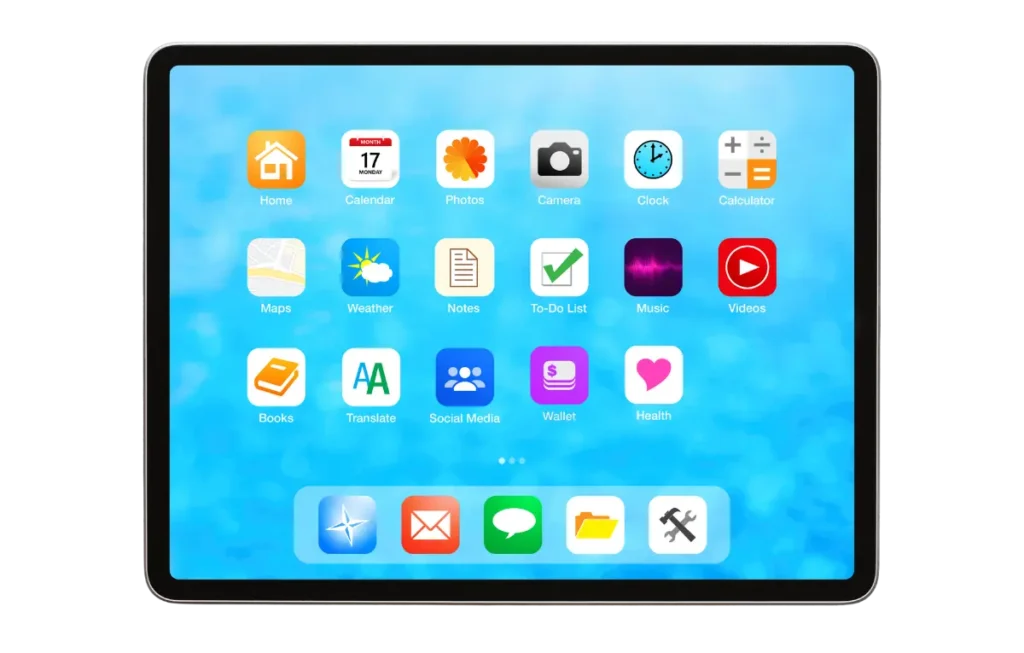
A screen full of apps is where most people get lost. The fix is to strip it back to the handful that actually get used, something like FaceTime, Messages, Photos, Mail, Safari, Weather, Calendar, Clock, a favourite news app and a game or puzzle. Everything else goes into a folder or onto a second screen, out of the way.
To move an app, press and hold its icon, tap Edit Home Screen, drag it where you want it, and tap Done. Keep the most-used apps on the very first screen so they are the first thing seen.
4. Make FaceTime easy to find
For most families, FaceTime is the whole reason the iPad is there. Put it on the bottom dock or right at the top of the first screen so it is never hunted for. Then make sure the people they will call are saved as contacts: open Contacts, tap the + button, add the name and a phone number or email, and tap Done. Finish by making a test call together, so the first real one is not the first time they have seen it ring.
5. Increase the volume
A lot of missed calls and alerts come down to the iPad simply being too quiet. Under Settings > Sounds, turn the ringtone and alert volume up, and check the physical volume buttons on the side of the iPad while you are at it. For video calls, a simple stand helps the sound carry, and a Bluetooth speaker or a pair of comfortable headphones makes a real difference if hearing is a concern.
6. Turn on helpful accessibility settings
Apple builds in a lot of help under Settings > Accessibility. You do not need all of it, and turning everything on at once usually does more harm than good. Start with one or two that match the person:
- Display & Text Size: larger, clearer text
- Zoom: magnifies part of the screen
- Spoken Content: reads text aloud
- Touch Accommodations: helps if tapping is difficult
- AssistiveTouch: adds an on-screen button for common actions
- Subtitles & Captioning: useful for videos
7. Reduce unwanted notifications
Constant buzzing and banners are distracting, and they are often what makes an iPad feel stressful. Under Settings > Notifications, switch off the ones that do not matter. For most people it is enough to keep notifications for Messages, FaceTime, Calendar, Reminders and anything phone-related they actually use. Turning the rest off makes the whole iPad feel calmer.
8. Set up family support
The setup lasts longer when someone in the family keeps half an eye on it. That means saving the important contacts, removing apps that creep back in, turning on automatic updates, writing down the Apple ID password and keeping it somewhere safe, and checking in every few weeks.
A printed one-page guide left beside the iPad is worth more than it sounds. Keep it to the things that come up most: how to answer a FaceTime call, how to make one, how to charge it, and what to do if something on screen looks suspicious.
Final thoughts
An iPad does not need to be complicated. With larger text, a simpler Home Screen, louder sound and a few helpful settings, it becomes far easier to live with. The best setup is not the most advanced one. It is the one the person feels confident using every day.